Digital Business Card Design: 9 Rules, and When Canva or AI Is Enough
Digital business card design that works on a phone: 9 rules for buttons, contrast and images, Canva vs AI vs studio, and a one-page brief for a designer.
Digital business card design is not about picking a pretty template. The card opens on a phone, often one-handed and on the move, and the client decides within seconds whether to tap. Which makes the design decisions here usability decisions: which button stands out, where it sits, whether the Hebrew reads easily and whether the images load fast. In this article we set out 9 rules, compare Canva, a card platform, an AI builder and a studio, and finish with a one-page brief you can hand a designer tomorrow morning.
Rules 1–3: one action that is easy to tap
The build stages, from defining the goal through to distribution, we covered in the complete guide to the digital business card. Here we focus on what happens on the screen.
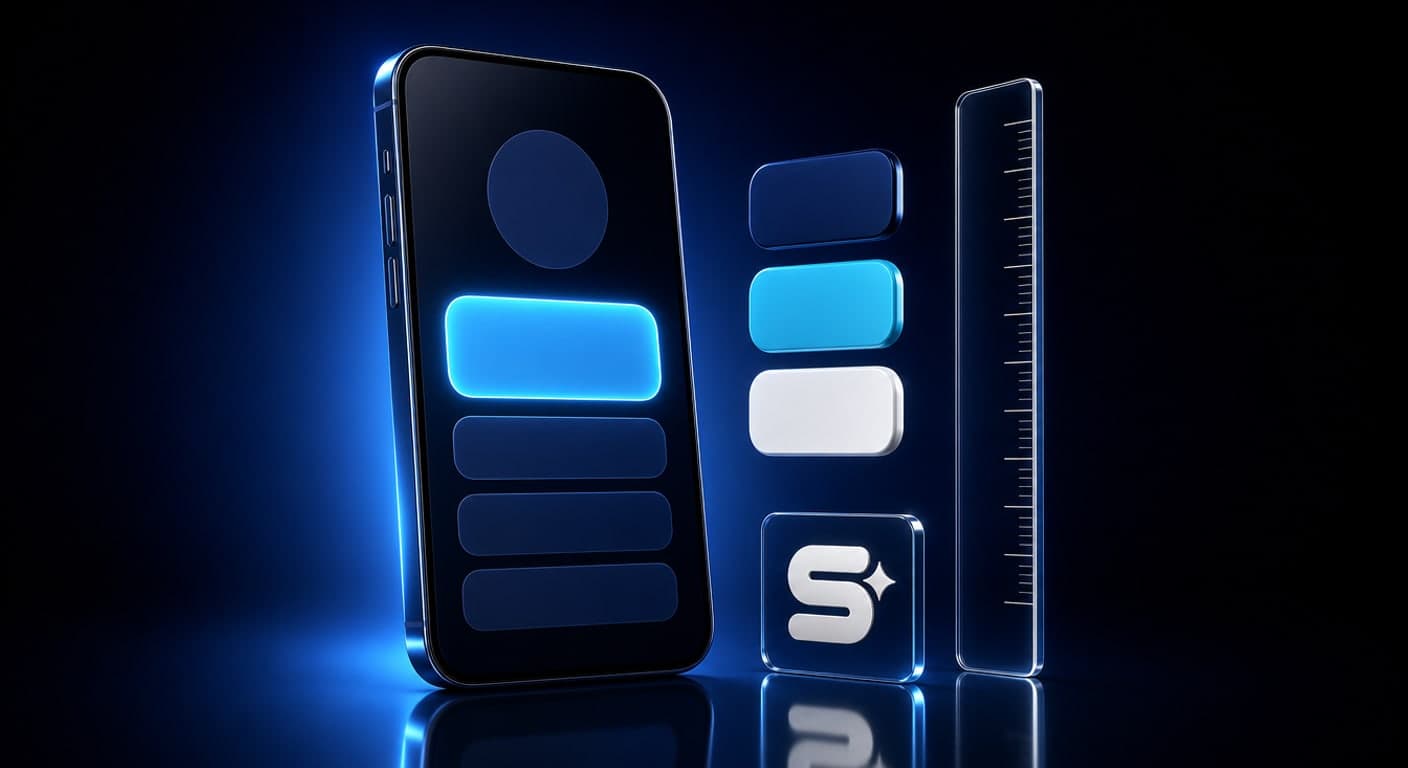
Rule 1: one main button. Pick the single action that matters most to you: a call, WhatsApp, booking an appointment or saving a contact. That button is bigger, in your brand colour, and sits immediately below your name. Every other button is secondary and in a neutral colour. Which action is right for each profession we showed in 10 examples of digital business cards.
Rule 2: the thumb zone. When you hold a phone in one hand, the middle and lower part of the screen are easier to reach than the top corners. So do not put the main button in a corner. On a long card, repeat it at the bottom of the page as well, after the gallery.
Rule 3: three to five buttons, at finger size. According to web.dev, the recommended size for a tap target is around 48 pixels, which is about 9mm, roughly the area of a finger pad. On top of that, leave a gap of about 8 pixels between buttons, so that tapping one does not trigger its neighbour. Seven buttons all the same size is the most common mistake we see: every extra button weakens the main one.
Rules 4–6: Hebrew, contrast and brand colours
Rule 4: real Hebrew, not a translated template. Choose a font with full Hebrew support. In Google Fonts, for instance, Heebo, Rubik and Assistant all have a Hebrew version. Then check the three things that break in templates built in English: right alignment, arrows and icons pointing the right way, and phone numbers or email addresses that do not flip around inside a Hebrew line. Also, do not use more than two font weights.
Rule 5: contrast of at least 4.5:1. According to web.dev, a contrast ratio of 4.5:1 between text and background is the minimum set by the WCAG 2.0 accessibility guidelines. Light grey text on white, or white text over a photo with no darkening layer, fails almost every time. Israel's accessibility obligation applies to a service provided to the public online as well, as we set out in our website accessibility guide.
Rule 6: colours from the logo, in moderation. Take one primary colour from the logo for the main button and for important elements, and a neutral colour for everything else. If your brand colour is too light for white text, use a darker shade of it for the button. Lots of colours do not signal a brand, they signal confusion.
Rules 7–9: images, icons and testing on a real phone
Rule 7: light images. According to Google's web.dev, the largest element on the page should load within 2.5 seconds at most (the LCP metric). On a card, that element is usually the background image or the profile photo. So compress every image before uploading, and prefer a modern format such as WebP or AVIF, both of which are supported in Google Search. Give every image alt text that describes it: according to Google Search Central, it helps people using a screen reader, and it also helps Google understand the image.
Rule 8: an icon with a word. A WhatsApp icon is recognised instantly, but an arrow, a shield or a phone with an asterisk is not. So give every button a short label too: "WhatsApp", "Navigate", "Save contact". The label also helps a screen reader say what the button does.
Rule 9: test on a real phone. Not in the tool's preview. Open the card:
- On an iPhone and on an Android, over a cellular network.
- One-handed, and check that your thumb reaches the main button.
- With text enlargement turned on in the phone's settings, and check that nothing gets cut off.
- In dark mode, and check that the logo does not disappear against a dark background.
- And finally, tapping every button, checking that each one leads to the right place.
Software for digital business card design: Canva, a platform, AI or a studio
"Business card design software" today means four very different options. This is the difference between them, in our experience:
| Tool | What you get | What to check | Suits |
|---|---|---|---|
| Canva | Free-form design, plus a one-page site in Canva Websites | Hebrew and RTL in the published version, a save-contact button | Someone designing alone who also wants a printed card |
| Card platform | A template with ready-made buttons | Design flexibility, ownership of the address | A business that needs a card fast |
| AI builder | A draft of the design and the text within minutes | Facts, Hebrew, contrast and links | A starting point before a human fixes it |
| Studio | Design that follows the brand | Who updates it, and at what cost | A card that is part of the sale |
On Canva: Canva's website builder can publish a responsive site with forms, on a free domain or a paid one (check the terms of your own plan, they change). It is no longer only a tool for producing an image to print. That said, the Hebrew and the action buttons need checking in the published version, on a phone.
On AI: an AI builder is good at a first draft. It is weak on facts: opening hours, prices, and links that lead to the right place. Our rule: AI designs, a human checks every button. How to choose between providers on ownership, measurement and support, we set out in 12 checks for choosing a digital business card.
An example of an AI builder from our own house: SimplyCard, the platform we built at Simple Web. You paste a link to your website or Instagram, the AI drafts a card in about 5 minutes, and you check every button before the card goes live. Building it is free; you pay only when you publish.
A one-page brief for a designer
A good brief saves rounds of revisions. This is what belongs in it, on one page:
- The primary action and why it is that one.
- The buttons and where each one leads: a phone number, a WhatsApp number, the exact address for navigation, links to the networks you are genuinely active on.
- Brand assets: a logo in a high-quality file (SVG, or a transparent PNG), colour codes and font names, if you have them.
- Images: a real profile photo and work photos you have the right to use.
- Copy: one sentence on what you do and for whom, and a short list of services.
- What changes often, so the designer builds those parts to be easy to update.
- Where the card will be distributed: a printed QR code, an NFC card, an Instagram bio or an email signature.
- An accessibility and contrast requirement, stated explicitly.
- One example you liked and one you did not, each with a sentence on why.
What Simple Web does about it
Simple Web is an AI-first marketing agency from Bnei Brak, certified Meta partners and Google advertising experts, working with 200+ businesses and holding 28 five-star Google reviews. We design our digital business cards under Studio 51, Simple Web's digital business card brand, and to date we have designed more than 300 cards. We build with AI, and people on the team check the result.
Every card includes a WhatsApp button, call, navigation in Waze or Google Maps, a photo and video gallery, save-contact, sharing, and a lead form whose enquiries reach you by email. With every card you get a branded PVC NFC card. The card is ready within up to 14 business days from the moment we have received all the materials. Changes during the first 14 days after launch are free of charge, and after that ₪200 per working hour — which is why the brief above saves money as well. No logo? For card clients we design a logo at a special price, and anyone who needs a full brand language can turn to our branding service. The price is given as a quote based on scope, after a free diagnostic call.
Prefer to design it yourself using the 9 rules? In SimplyCard you build the card on your own for free, and pay only when you publish it.
Summary
Good digital business card design starts with one clear action, a button the thumb can reach, and Hebrew that reads without effort. Contrast, light images and labels on the buttons make it accessible and fast. The tool matters less than the testing: Canva, AI and a studio can all reach a good result, as long as someone opens the card on a real phone and taps every button. Want us to go over your card's design with you? Book a free diagnostic call.
Sources
- web.dev: Accessible tap targets: the recommended tap target size of around 48 pixels and a gap of about 8 pixels
- web.dev: Color and contrast accessibility: the minimum contrast ratio of 4.5:1 under WCAG 2.0
- web.dev: Web Vitals: the 2.5-second threshold for a good LCP
- Google Search Central: Google Images SEO best practices: alt text for images and supported formats such as WebP and AVIF
Tags:
Recent posts